Episode #46 features another excerpt from the presentation for the Individual Differences in Learning Association in Howard County, Maryland. This excerpt describes WordTalk; a free text-to-speech plug-in for Microsoft Word.
The episode features a bumper from Karen Janowski who is an assistive technology consultant, an assistive technology specialist for a school district in Massachusetts, adjunct faculty member at Simmons College, and school board member in her town. She is also one of the innovators behind the UDLTechToolKit wiki, which contains a plethora of resources useful for differentiating instruction.
WordTalk is a free text-to-speech add-in for Microsoft Word. You can find all the details about which versions of Word it works with along with other frequently asked questions, installation instructions and more over at the WordTalk download page.
3. 2009 Edublog Award Winners – Congratulations to all of the winners! Let me recommend you head over there to check out all of the nominations and winners. The A.T.TIPSCAST placed seventh out of 26 in the category of “Best Educational Use of Audio“.
4. CliCk, Speak – A free, open source text-to-speech extension for the Firefox web browser.
5. Text-to-Speech in OpenOffice – Open Office is a free suite of programs including a word processing program. OO Text To Speech is a free download for this program.
6. Word Magnets – Type or paste text (words or letters) into a box that then makes each word (or letter) a separate moveable object. Perfect for word scrambles or sentence generation on an interactive whiteboard.
Leave a comment down below or drop me a line at attipscast@gmail.com. Let me know what you think of the show! You can access the podcast and register as a fan of the show from here:
Episode #44 is up for your listening pleasure and boy is it a doozy! It clocks in at just under 42 minutes! Yikes! Episode #44 is kind of a unique episode because it features a recording of a live event. Back on November 14th I was lucky enough to attend the Powering Up with Technology Conference in Prince George’s County Maryland. At that conference I presented a session called Alternative Professional Development. I use the term “presented” loosely because, although I was listed as the presenter, the session was more of an integrated brainstorming session. I was more of the moderator for the discussion than a presenter. During the session we tried to outline some of the common problems with staff development happening in public schools and then try to come up with some solutions. During the course of the discussion a bunch of great ideas were mentioned about how to address some of the problems with the typical professional development model. Furthermore, a number of concrete resources are mentioned that can be used to assist students. You can access the entire presentation as generated by the audience here: Alternative Professional Development Presentation from PUWT09.
The episode also features a bumper from Robin Lesht who is a speech-language pathologist from Mount Prospect, Illinois. I met Robin at ATIA 09 where we shared different experiences working in the field of speech-language pathology.
A.T.TIPS In This Episode-
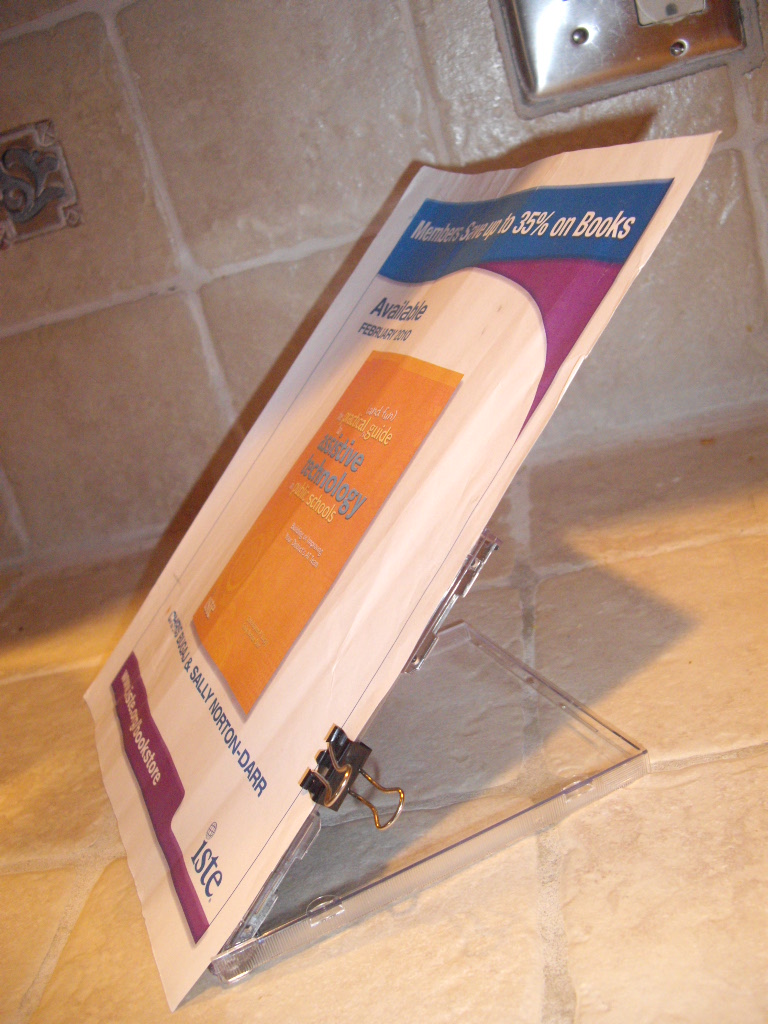
A.T.TIP #67: Document Holder from Inverted CD case and Alligator Clip
Many a student has strained their neck transposing a handwritten assignment onto the computer because the paper was flat on the desk. To alleviate the neck strain people started to use document holders so that they didn’t have to constantly shift their field of vision from the paper to the screen and back again. Sure, you could go out and spend money on a fancy, commercial document holder or you could take an unused CD case that you probably have lying around, flip it over so the hinged cover is upright and then fasten the paper to it with an alligator clip. Done and done, instant document holder.
This website provides over 1000 pre-made lessons/presentations on a wide variety of curricular topics. The media-rich presentations are similar to a PowerPoint presentation and each one is available to be viewed online via your web browser. Each presentation is useful as a pre-learning activity where students could be asked to independently review content before a class discussion, as an alternative source of content to complement or supplement another lesson, or as a follow-up/review activity at the end of a lesson.
This website allows you to create an animated talking head. Use text-to-speech or record a voice to have the voki speak the message. Vokis could be used by a teacher to introduce a lesson, give verbal instructions for an assignment, record reminders to students, provide feedback and more! Vokis could be used by a student as an alternative means of expression for presentations, practicing conversations, or demonstrating knowledge. Check out these ideas on how to use Voki in your classroom from The Edublogger.
This website allows you to upload a picture, select a portion of that picture that will move (usually a mouth), and then record a message. When the message is played back, the selected area will move in time with the message. Blabberize can be used in similar ways as Vokis. It could be used by a teacher to introduce a lesson, give verbal instructions for an assignment, record reminders to students, provide feedback and more! It could be used by a student as an alternative means of expression for presentations, practicing conversations, or demonstrating knowledge.
4. www.delicious.com – Social Bookmarking Site. Note that the A.T.TIPSCAST uses delicious to share resources on the left side of the page.
5. www.Prezi.com – A new and interesting way to create a presentation. Information is presented on one large canvas and you zoom into different areas of the canvas to view the information.
6. www.tinyurl.com – A useful way of making long URLs shorter. Shortened URLs are easier for users to remember (like www.tinyurl.com/nlsstories) and easier for people to type in if entering a URL from a piece of paper.
7. Tonyvincent.info – A link library of useful educational resources created by the keynote speaker of the conference, Tony Vincent. **Corrected from original post- Tony made a comment below sharing that the site he used to present at the conference was http://tonysite.info ***
8. Radio WillowWeb Podcast – Radio WillowWeb is a podcast for kids
and by kids from the students at Willowdale Elementary School in Omaha, Nebraska. Each new show is called a Willowcast. Each Willowcast can be heard on WillowWeb as an mp3 digital audio file.
9. ASHA Podcast – The American Speech-Language-Hearing Association’s podcast features interviews with different individuals making strides in the field of speech-language pathology and audiology
10. Quick Access Toolbar in Word 07 – Microsoft Word 07 features a quick access toolbar that can be customized, allowing for favorite tools to be shown and less used tools to be hidden. This feature helps to reduce clutter on the screen while highlighting to students some key/important features they could be using in Word.
If I don’t get to see you at NECC we can still connect virtually. Join the A.T.TIPPERS group on Facebook and/or Classroom 2.0 ! You can also follow me on twitter.com.
Leave a comment down below or drop me a line at attipscast@gmail.com. Let me know what you think of the show! You can access the podcast and register as a fan of the show from here:
Episode #43 is up for your listening pleasure! Episode #43 features some more feedback from listeners of the show. There was still too much feedback to fit it all into just this episode so you can expect to hear at least one more Listener Feedback episode in the future.
The focus of the Classroom Acoustic Coalition Facebook group is to bring about awareness about acoustics in the classroom. In the episode Signal-to-Noise ratio is mentioned as something to consider when working with students. The following are some other helpful resources about S/N and classroom acoustics:
This website allows you to quickly upload pictures and videos (.mpegs, .mpgs, .mp4, .mov, .avi, .wmv, .jpg’s and more) and then select from a number of free montage styles and music to create a nicely polished, professional looking, special effect ridden video. Once finished, the website generates a URL for your video that can be shared. The website is easy to use and would allow students to be able to create flashy presentations above and beyond just a simple slideshow. Plus, there is nothing to install. All of the controls and design occur right there on the website all for free. The only downside is that only some of the montages and music is free. For access to the complete library you need to become a premium member and pay a fee. Also, to export the video into another file format you need to be premium member. The following are some of the videos I’ve made using this website:
This website allows you to capture a video of whatever is happening on your screen. You can export videos as .swf files (flash) and .mov files, which means you can save the videos right down to your computer. You can choose to record the entire screen or record a rectangular area of the screen. Screentoaster.com is a great way to capture and share what a student has done on a computer and is also a great way to capture any lesson done on the computer. Also, a student could capture work they’ve done on a home computer to share back with teacher. It is also great for making short video tutorials providing directions for how to do something on the computer. Students could watch these videos over and over again as a way to have instructions repeated as many times as necessary.
If I don’t get to see you at NECC we can still connect virtually. Join the A.T.TIPPERS group on Facebook and/or Classroom 2.0 ! You can also follow me on twitter.com.
Leave a comment down below or drop me a line at attipscast@gmail.com. Let me know what you think of the show! You can access the podcast and register as a fan of the show from here:
Run! Run! Run for your lives! Episode #42 is up for your listening pleasure! Episode #42 features a visit to Count Edula’s mansion where he asks about some tools he can use to help organize his “hypothetical” zombie army. Chris’s suggestions just so happen to be useful tools to help students as well.
Google Earth lets you to zoom anywhere on Earth to view satellite imagery, maps, terrain, 3D buildings, from galaxies in outer space to the canyons of the ocean. Google Earth is a free software program you can download and install on your computer. When you launch the program you see a celestial view of the earth. On the left hand side you see a search window. Type in any location, hit the magnifying glass icon, and watch as you zoom to that location. Also on the left side of the screen you’ll find a section called “layers” click on any of the boxes there to add additional features to what you see in your search. So, for instance, if you select the “3D Buildings” layer when a 3 dimensional image of a building is available you will see that building in three dimensions. Try it by searching for any major city, like Chicago, and you’ll see a three-dimensional representation of tons of different buildings or try doing a search for one of the lighthouses along the Outer Banks. In more remote locations like those you can really see the difference between the 2 dimensional representations and the 3 dimensional representations. There is a street view layer that is awesome where you can see, where available, a 360 degree digital image as if you were standing at a given location. Students who have trouble visualizing how tall something is, or what something might look like, or how a structure might appear in real-life, can experience these places in a very tangential way. Using Google Earth before or after a field trip or community-based instructional trip can bring a totally new dimension to the learning experience. What’s nice about Google Earth is that it’s totally free. Students can download it at home to explore on their own. Again, this is just scratching the surface of what it can do as there are all different types of layers, including shipwrecks, weather conditions and forecasts, and global awareness.
Google Earth 5 allows you to create a tour by creating a movie. One of the icons is a little video camera. Just click on that video camera icon and then the little red record button that appears. Teachers can use this with students to give a little video tour of where they are going or where they have been. Students can also use this feature to demonstrate their knowledge. A student records themselves traveling from place to place in Google Earth to demonstrate they know how to get to a location from a location, that they know where on the globe an event occurred or where a place is actually located. You could even use it as an alternative way to tell a story. Instead of writing that essay on what they did over Winter Break, students can virtually take the teacher and other students to that location by showing it on Google Earth.
Mystudiyo.com is a website that allows you to create assessments using all sorts of different media. There are different assessment types to choose from, but the one that I think is easiest and most relevant to students is the multiple choice type of assessment. Once you choose your assessment type the website takes you through a series of questions to set-up your quiz. It’s like a quiz wizard that walks you through creation, step-by-step. You can choose from different looks of your quiz and you can add introductory media using text, an image, or video to give directions which is perfect for students who might have trouble reading instructions. You can also have text, an image or video accompany each question, which means you could read each question aloud and save it as a video to have a much more accessible assessment. At the end of the assessment a student can be presented with a scoreboard to see how well they did. Once you’ve finished creating your quiz the website generates a unique URL for your quiz. Take that URL and distribute it to students for them to take the quiz on your computers or, if possible, on their own home computers. See how well you can do on the quiz created by Count Edula for his zombie horde.
Shorttext.com allows someone to either type or copy/paste text directly into it. Then, once they are ready, they click on the “Create URL” button to make a URL for that text. In the future, they just go back to that unique URL to access that text again. It’s a handy way to save information. For instance, students who tend to lose things, like thumbdrives or assignments, can post it to Shorttext.com. Then, all they need is the URL to go get it. Unlike a thumbdrive, the URLs can be shared with a teacher or in a safe location that doesn’t get transported to and from school. There are some other tools on the net that might be better for organization of assignments and such, but shorttext.com has a very simple interface without lots of buttons or other functions. This makes it less intimidating, which is why I like it and which is why it might be perfect for some students and teachers. Check out a piece of intercepted correspondence from one of Count Edula’s zombie field generals.
Points of Interest:
Mentioned in the podcast is an article by the New York Times about Wikipedia’s new policy about editing entries about living people.
Also, if you haven’t seen this Common Craft How-to video, well, it might be worth your time to help you prepare for the impending apocalypse.
I hope to meet you at any or all of these presentations. But, if you can’t make it to those, and you’re interested in any of this (or other) content for workshops in your district please contact me at attipscast@gmail.com. We can work together to set something up either in person or virtually!
Leave a comment down below or drop me a line at attipscast@gmail.com. Let me know what you think of the show! You can access the podcast and register as a fan of the show from here:
Episode #39 is up for your listening pleasure! Episode #39 describes different ways to utilize the Photo Album feature of Microsoft PowerPoint to facilitate digital storytelling. The episode features a discussion with the newly-improved, fan favorite, B-Bot!
A.T. TIPS In This Episode-
A.T.TIP #57: Photo Album Feature of PowerPoint
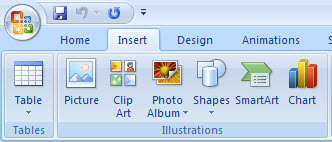
In PowerPoint 07 Photo Album can be found in the “Insert” tab. It is built right into this version.
Although there may be slight variations based on the version of PowerPoint you are using, the Photo Album feature of PowerPoint looks like this:
I’ll be presenting at the National Educational Computing Conference (NECC)- June 28th – July 1st in Washington, D.C. (Poster Session: Chew the P.H.A.T-Policies and How-to’s in Assistive Technology with Sally Norton-Darr).
Contact Information-
If I don’t get to see you at NECC we can still connect virtually. Join the A.T.TIPPERS group on Facebook and/or Classroom 2.0 ! You can also follow me on twitter.com.
Leave a comment down below or drop me a line at attipscast@gmail.com. Let me know what you think of the show! You can access the podcast and register as a fan of the show from here:
Episode #38 is up for your listening pleasure! Episode #38 features Part 2 of the interview with Chris Cummins, a high school English teacher and adjunct professor at the State University of New York at Fredonia who is currently teaching a class on Literacy and Technology. The second part of the interview focuses more on specific tools that can be used to create graphic organizers while also touching upon some ideas about implementing graphic organizers across the curriculum.
“The Visual Understanding Environment (VUE) is an Open Source project based at Tufts University. The VUE project is focused on creating flexible tools for managing and integrating digital resources in support of teaching, learning and research. VUE provides a flexible visual environment for structuring, presenting, and sharing digital information.”
A.T.TIP #56: Record Sound Feature of Inspiration (Not Free)
Students who can tell you a story (or explain an essay) orally but who have difficulty expressing those thoughts in a written format can use the “Record Sound” feature of Inspiration to complete writing assignments, like stories, essays, or essay questions on tests. The strategy involves the students recording one thought per cell in a web or outline created in Inspiration. Once they have recorded each sentence orally they can go back, listen to the sentence in the cell, and begin typing it in. Every time they get stuck with spelling or forget what they were going to type they can re-listen to their own recording to type it in. The following screenshots explain how to use the “Record Sound” feature of Inspiration.
Let’s say you have a graphic organizer that looks like this:
After selecting a cell, the student can record his voice by going here:
Once the student has selected “Record Sound” the following window will appear. Use the red record button to begin recording. Use the “Save” button to save the recording.
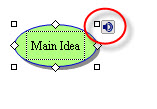
Once the sound has been saved the selected cell will display a “speaker” icon in the upper right hand corner. Double-click on this speaker icon to hear the recorded message as many times as necessary while the student types the words.
Additionally, teachers could use this feature to leave hints or reminder to students when developing a graphic organizing template.
Upcoming Conference Presentations-
I’ll be presenting at the National Educational Computing Conference (NECC)- June 28th – July 1st in Washington, D.C. (Poster Session: Chew the P.H.A.T-Policies and How-to’s in Assistive Technology with Sally Norton-Darr).
Contact Information-
If I don’t get to see you at NECC we can still connect virtually. Join the A.T.TIPPERS group on Facebook and/or Classroom 2.0 ! You can also follow me on twitter.com.
Leave a comment down below or drop me a line at attipscast@gmail.com. Let me know what you think of the show! You can access the podcast and register as a fan of the show from here:
Episode #34 is up for your listening pleasure! Episode #34 describes another strategy for assisting students who have trouble maintaining appropriate volume while speaking. The episode also features a bumper from my mom, Jackie Bugaj. I’d like to thank Thomas F., Doug G., Michael M., Christopher C., and Timothy C. for their contributions that can be heard at the end of the episode.
A.T.TIP #48: Digital Voice Feedback Modulators
Here are some videos that further explain how to use digital voice feedback modulators.
Visual Feedback For Volume Management:
Visual Feedback With Audacity:
My colleagues will be riding in the local Tour De Cure sponsored by the American Diabetes Foundation. If you can donate, even a dollar, it would be much appreciated. Select the “donate” button on either website to make a donation.
I’ll be presenting at these two upcoming conferences:
1. Teacher Researcher Conference – May 27th, 2009 in Fairfax, Virginia (Session on Strategy-A-Day Calendar on Teacher Desktops as an Agent of Change with technology resource teachers).
If I don’t get to see you at either of those conferences we can still get together virtually over the Internet. Join the A.T.TIPPERS group on Facebook and/or Classroom 2.0 ! You can also follow me on twitter.com.
Leave a comment down below or drop me a line at attipscast@gmail.com. Let me know what you think of the show! You can access the podcast and register as a fan of the show from here:
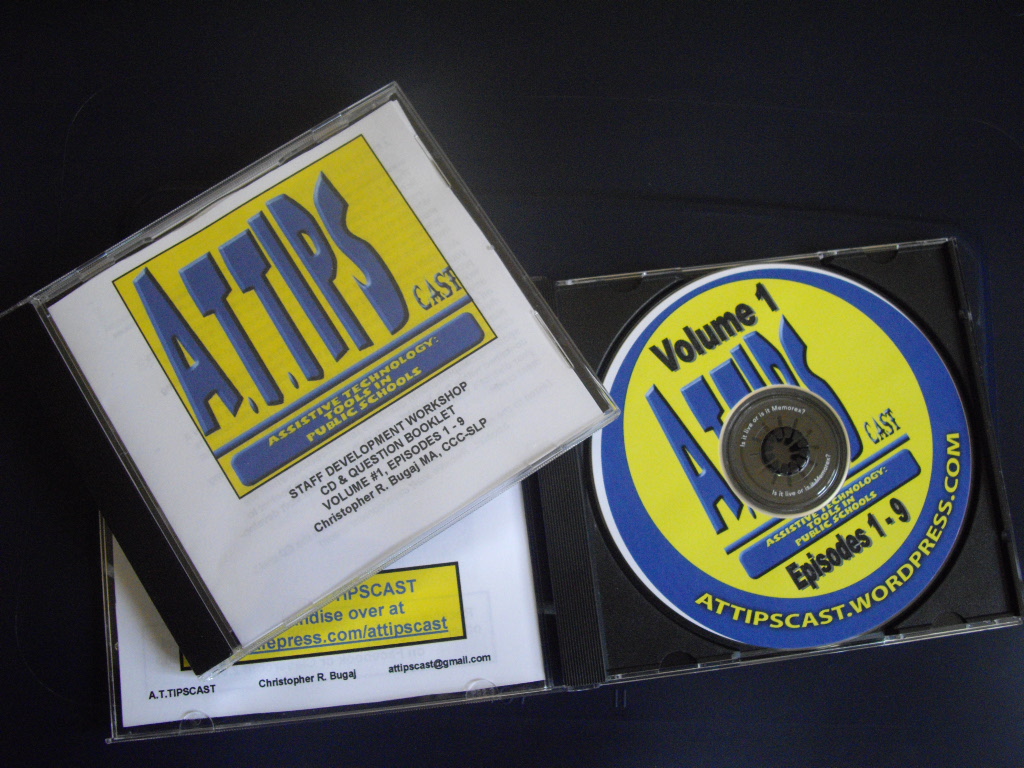
I’ve put together a professional development packet for you to download and use within your school or school district. Here is how it works.
The Problem:
Educators don’t have time to stay after school for staff development, but most, drive to work. Some educators may be reluctant to utilize new technologies, but most know how to operate a CD player. Educators are being asked to differentiate instruction to meet the needs of every learner every day.
The Solution:
The A.T.TIPSCAST is a free podcast that provides strategies to help educators differentiate instruction. As someone who organizes staff development workshops for your school or school district, download the episodes in each volume and burn them to a CD. Download the question booklet for that volume, print it out, and put it with your newly burned CD. Devise a method for distribution and then distribute to staff. E-mail me to get a copy of the answer booklet with all the answers in it. You’re done!
With minimal effort you’ve introduced three awareness level staff development workshops that educators can take without ever leaving their car! That’s over 3 and a half hours worth of professional development content at your fingertips with more to come as additional volumes of the A.T.TIPSCAST are completed (Volume #4 isin production now)!
The Resources:
Download these files to make your own staff development workshop out of the A.T.TIPSCAST!
Leave a comment down below or drop me a line at attipscast@gmail.com. Let me know what you think of the show! You can access the podcast and register as a fan of the show from here:
Episode #31 is up for your listening pleasure! Episode #31 describes the diabolical event that happened to me on April 1st, 2009. It also describes different ways to you use packing peanuts as assistive technology tools or to support existing assistive technology tools.
A.T.TIP #43: Packing Peanuts
Also, check out these resources associated with the different ways mentioned to use packing peanuts.
If I don’t get to see you at either of those conferences we can still get together virtually over the Internet. Join the A.T.TIPPERS group on Facebook and/or Classroom 2.0 ! You can also follow me on twitter.com.
Leave a comment down below or drop me a line at attipscast@gmail.com. Let me know what you think of the show! You can access the podcast and register as a fan of the show from here:
Hey everyone,
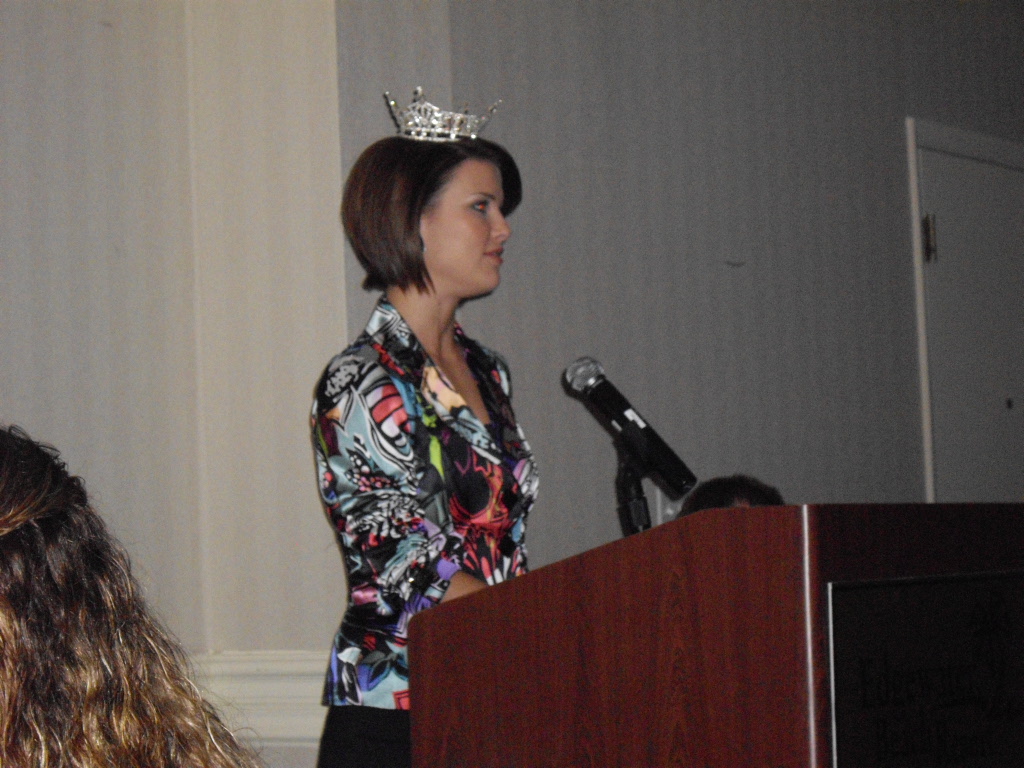
Episode #29 is up for your listening pleasure! Episode #29 is the first of a two-part feature on the top three things I learned at the National At-Risk Education Network (NAREN) Conference of 2009. The episode also features a bumper from Sierra Minott, Miss Florida 2008.
Sierra Minott, Miss Florida 2008 & your illustrious host
Sierra Minott, Miss Florida 2008 at NAREN 09 Conference
I suppose using Audio Visual Entrainment to assist students with disabilities fits the “exploring” and “investigating” I refer to at the beginning of each episode. The following are some links with more information on Audio Visual Entrainment for your consideration:
If I don’t get to see you at either of those conferences we can still get together virtually over the Internet. Join the A.T.TIPPERS group on Facebook and/or Classroom 2.0 ! You can also follow me on twitter.com.
Leave a comment down below or drop me a line at attipscast@gmail.com. Let me know what you think of the show! You can access the podcast and register as a fan of the show from here:
Hey everyone,
Episode #20 is up for your listening pleasure! Episode #20 describes the strategy of using a motivational plan to help reinforce appropriate behavior. Episode #20 also marks the end of Season One of the A.T.TIPSCAST. I’ll be taking a few weeks off due to other obligations but I will return before you know it with A.T.TIPSCAST Season Two!
A.T.TIP #32: Motivational Plans
Here are some more helpful resources on behavior/motivational plans.
Here is a link to the Juvenile Diabetes Research Foundation fund raising site to help raise money to find a cure for juvenile diabetes. Please donate even if it is just a dollar! Even the smallest amount can make the biggest difference.
Leave a comment down below or drop me a line at attipscast@gmail.com Let me know what you think of the show!
You can access the podcast and register as a fan of the show from here:
Hey everyone,
Episode #18 is up for your listening pleasure. In Episode #18 AMORPHOUS visual schedules are discussed. Below are some examples of AMORPHOUS (or Non-linear) visual schedules.
A.T.TIP #30: Amorphous Visual Schedule:
An example that is more general- For a student that doesn’t need specific visuals, but still needs a visual schedule. Note the “Unexpected” visuals.
An example that is more specific- For a student that needs more specific visuals on the visual schedule. Note the “Unexpected” visuals.
All of these schedules were created using Boardmaker software. If you’re like, “Hey, what the heck is Boardmaker software?” check out Mayer-Johnson’s website.
Here is a link to the Cystic Fibrosis Foundation fund raising site. We’re doing the walk on May 18th, 2008 but you can continue to give even if you’re reading this after that date. Please click on the “Make a donation” button to donate! Even the smallest amount can make the biggest difference.
One last thing, here is the link the video of the river running through my backyard. I admit, up front, that it was way more exciting in real life than the video shows but the point was that it was unexpected, just like things that happen in a classroom everyday.
Hey everyone,
Episode #17 is up for your listening pleasure. In Episode #17 linear visual schedules are discussed. Below you will find examples of both horizontal and vertical linear schedules. Enjoy!
A.T.TIP #29: Linear Visual Schedules
Horizontal:
Vertical:
All of these schedules were created using Boardmaker software. If you’re like, “Hey, what the heck is Boardmaker software?” check out Mayer-Johnson’s website.
Here is a link to the Cystic Fibrosis Foundation fund raising site. Please click on the “Make a donation” button to donate! Even the smallest amount can make the biggest difference.
Hey everyone,
Episode #16 is up for your listening pleasure. In Episode #16 I answer questions from e-mails and voicemails submitted by “listeners” to the show. Four new A.T. TIPS are discussed in the show.
A.T.TIP #27: JUICYSTUDIO.COM for Website Readability Statistics
Here is the link to the Website Readability Statistic Tool. Make sure you scroll down a bit to see it. Simply place the URL of the website you want analyzed and hit “Calculate Readability”.
This online dictionary provides an auditory version of each word along with many cool games.
Here is a link to the Cystic Fibrosis Foundation fund raising site. Please click on the “Make a donation” button to donate! Even the smallest amount can make the biggest difference.
Hey everyone,
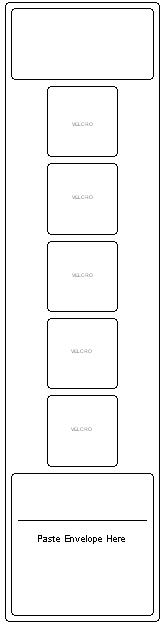
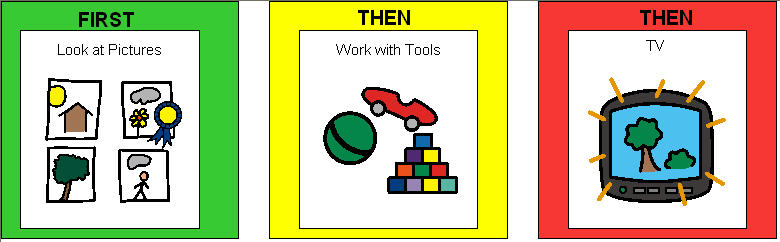
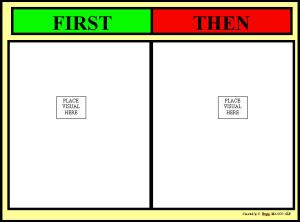
Episode #15 is up for your listening pleasure. Episode #15 describes how to create and implement a First-Then board with students who need help following directions or completing tasks.
Here are a few examples of first-then boards:
Here is a link to the Cystic Fibrosis Foundation fund raising site. Please click on the “Make a donation” button to donate! Even the smallest amount can make the biggest difference.